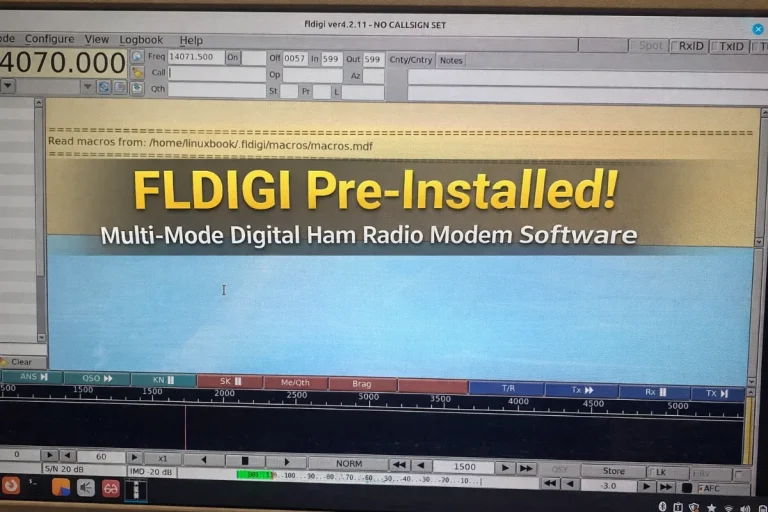
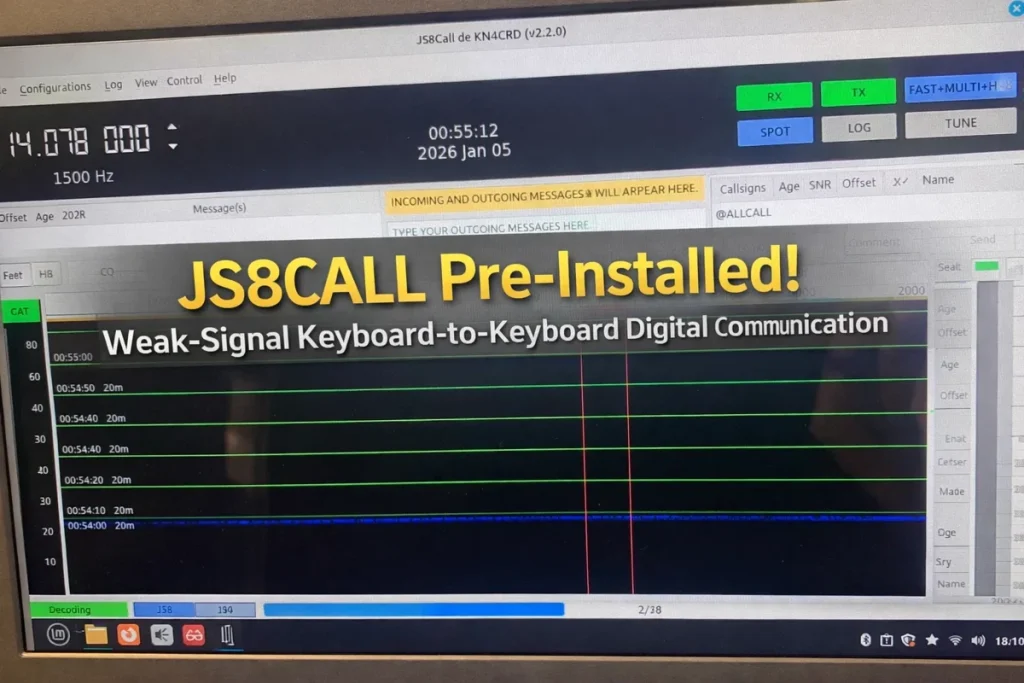
If you’re looking at JS8Call for the first time, it helps to separate the software from the rest of the station. I prepare ham radio laptops at CustomVectors. The computer gives you a starting point; your radio still needs its own connections and settings. Let’s look at how those pieces fit together.
What does JS8Call do?
JS8Call is an application for exchanging text messages over amateur radio using the JS8 mode. It suits operators interested in keyboard conversations and short messages under weak-signal conditions. It also offers features for stored messages and relaying messages through other stations; start with basic reception before exploring those features.
JS8 and FT8 share a technical ancestry, but they are different modes. JS8Call grew from work on WSJT-X and FT8 to support free-text messaging. JS8Call does not turn an FT8 contact into a conversation, and JS8 and FT8 signals are not interchangeable. If your goal is FT8 operation, look at WSJT-X rather than selecting JS8Call by mistake. See the released JS8Call user guide for the application’s background and capabilities.
The parts of your station
- Laptop and software: the computer runs JS8Call and handles the messages. It does not replace the radio.
- Radio and antenna: a suitable transceiver sends and receives the radio signal; an appropriate antenna and feed line connect it to the outside world.
- Audio interface: this carries received audio into the computer and transmit audio back to the radio. Some radios include a USB audio interface; others need an external interface.
- Cables: the correct connections depend on the radio and interface. A USB socket alone does not tell you which audio and control functions it supports.
- CAT or radio control: where supported, this lets software read or change radio settings such as frequency. It is a different job from carrying audio.
- PTT, or push-to-talk: this switches the radio into transmit. The appropriate method depends on your equipment; working CAT control does not prove that audio and PTT are both ready.
Before buying an interface or cable, check the exact radio model and its manual. If you’re still choosing a computer, my ham radio laptop setup checklist helps you gather the right questions.
Begin by receiving
I suggest making one part work at a time. With transmission disabled, follow your radio and interface manuals to route received audio into the laptop. Then select that device as JS8Call’s input. You want the radio’s audio, not the laptop microphone picking up sounds in the room.
Check that the input meter and waterfall respond to the radio. A moving waterfall shows audio activity; it does not, by itself, prove that you are receiving a decodable JS8 signal. Confirm that the activity is actually JS8, and use the software documentation and your equipment manuals to check the receive configuration.
Keep the computer clock synchronized. JS8Call decodes timed transmissions, so an inaccurate clock can prevent messages from decoding even when you can see signals. Check your operating system’s time synchronization; for a station without internet access, plan a suitable independent time source. The released guide explains time synchronization.
Then check the transmit path
Choose the audio output that feeds your radio or interface, separately from the receive input. Laptop speakers are not the intended output for a wired station. Check CAT and PTT using the methods documented for your radio, interface and installed software.
Before transmitting, confirm the correct station identification, your operating privileges and the radio’s documented digital-mode setup. Follow the equipment guidance for audio levels and transmitter operation; there is no single power or menu setting I can recommend for every station. Keep ordinary computer notification sounds out of the radio’s transmit audio path.
Common first-session questions
I see signals, but no messages. Where do I start?
First check the mode and clock, then the selected audio input and its level. A very loud input can distort just as a very quiet input can be unusable. Check whether another application is using the same audio device or control connection. Change one thing at a time so you can tell what helped.
The software changes the radio frequency. Why can’t I transmit?
That confirms part of the control path. It does not confirm PTT, the outgoing audio device or the radio’s audio-source selection. Treat those as separate checks in the equipment documentation.
Does a prepared laptop finish my station setup?
It gives you a starting point with software prepared. Your radio model, interface, cables, audio routing and control settings still matter. If you contact me for help, include those models, your operating system, the JS8Call version and what happens when you try to receive. A screenshot of the relevant settings or error can help; leave passwords and personal information out.
A useful next step
Write down your radio and interface models, identify the audio input and output, and aim for clear reception before a first message. You can use this approach with your own computer. If you’d like me to prepare a laptop or discuss setting up one you already own, the relevant options are below.
Documentation and further reading
This overview uses the JS8Call 3.0.3 release-tagged user guide. The official download page provides release information. Match detailed instructions to the version on your computer: the online master manual includes development work, and a download version does not identify the version installed on a kit. The image above is artwork from my earlier listing, not a current-version or radio-compatibility test.